RedmineStudio Settings③ -Schedule Items, Issue List-
redminepower
RedminePower

This is an explanation of RedmineStudio’s review issue creation feature.
This article covers review method settings and the advanced Outlook integration feature.
By integrating with Outlook, scheduling reviews becomes much easier.
Please read through to the end.
RedmineStudio divides review methods into two categories based on “whether participants need to physically gather”.
These are categorized based on the actual work required, and are different from general review types or specific review methodologies, so please keep this in mind.
Here’s how to specify the review method.
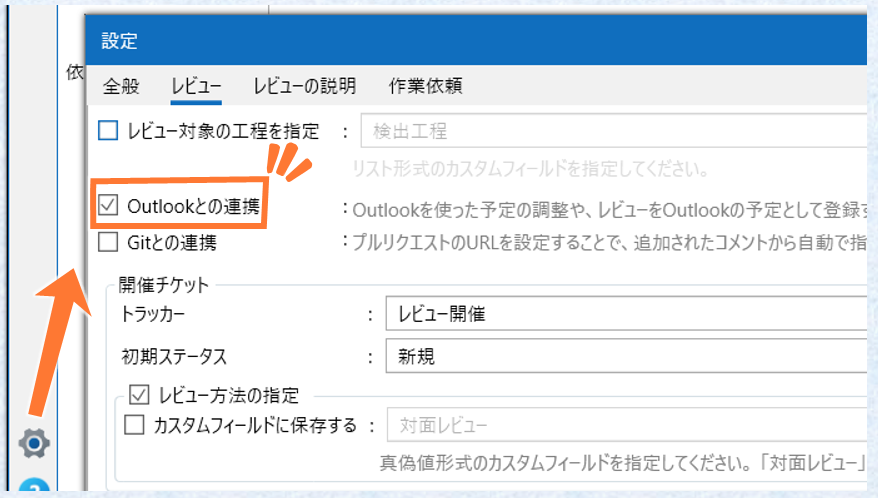
Open the Review tab from the settings screen and check “Review Method Specification”. This setting is retained, so you only need to do this once.
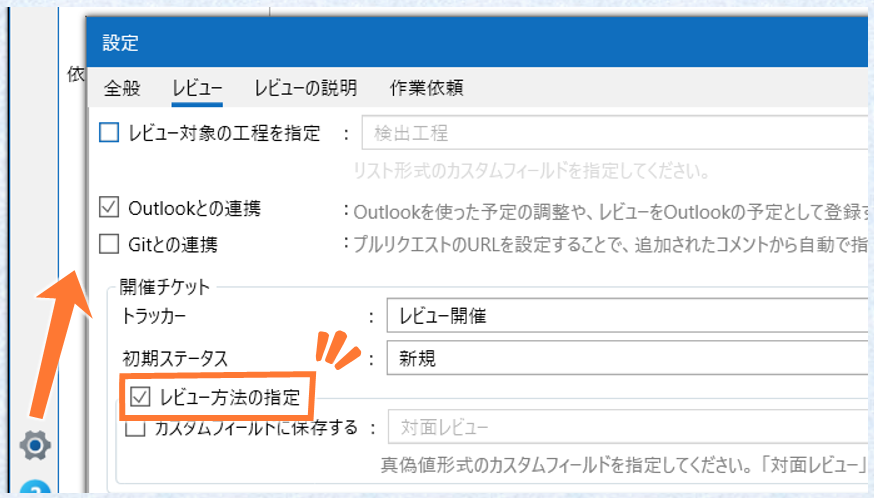
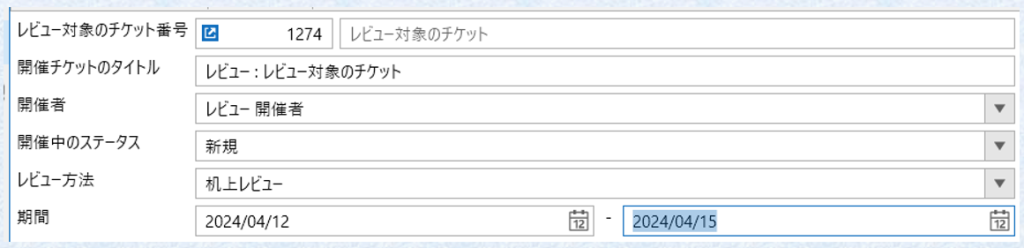
When enabled, an item to specify the “Review Method” will be displayed on the review screen.
Select either “Desk Review” or “Face-to-Face Review” as the review method. “Desk Review” is selected by default.

Open the Review tab from the settings screen and check “Outlook Integration”. This setting is retained, so you only need to do this once.
When “Outlook Integration” is enabled and the review method is set to “Face-to-Face Review”, a checkbox for “Create Outlook appointment” will appear. If you check this box and click “Create Issue”, the issue will be registered and an Outlook appointment will be created at the same time.
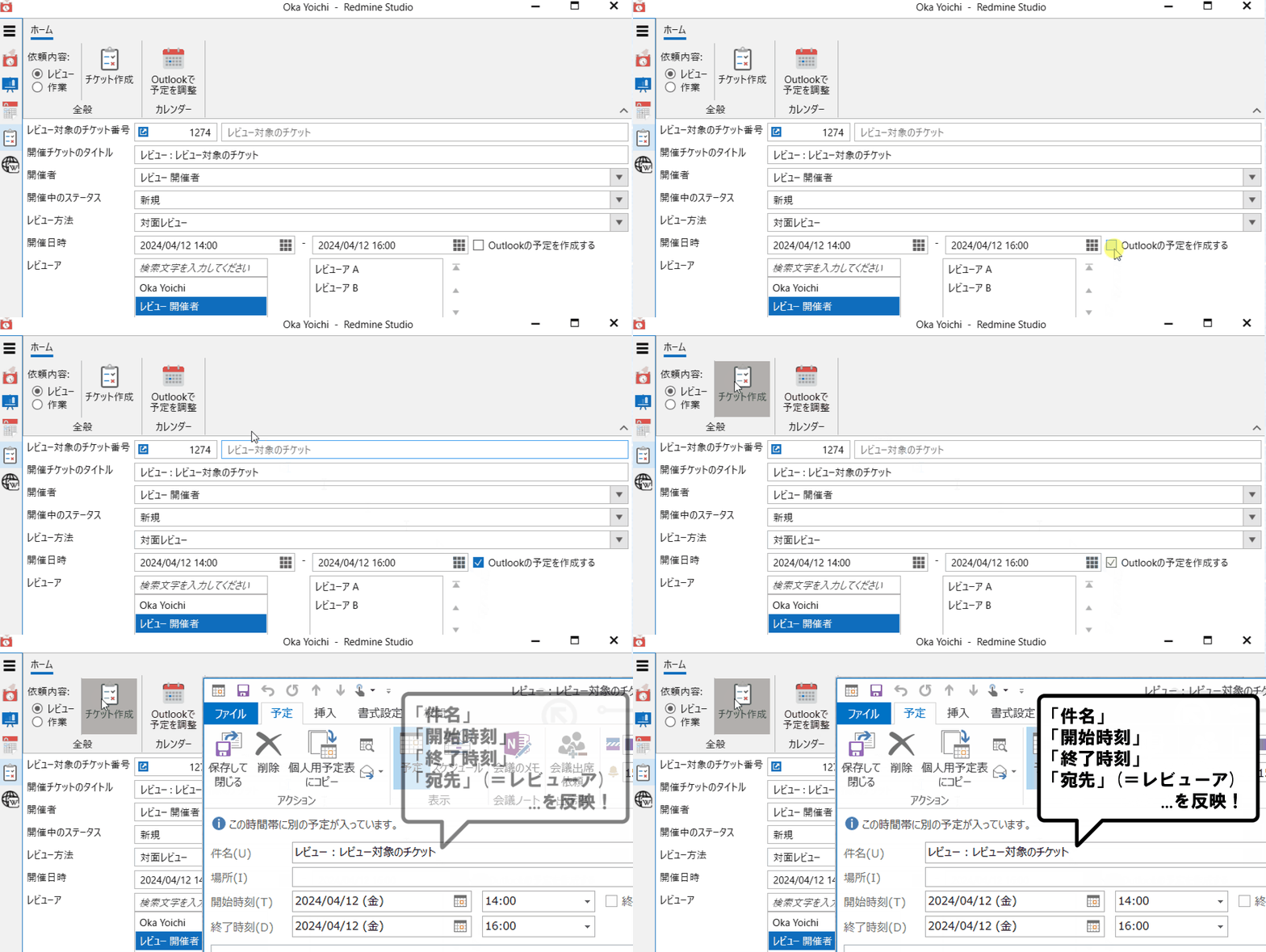
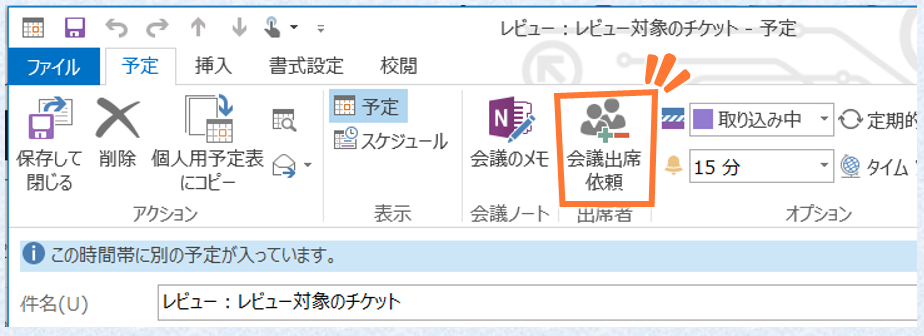
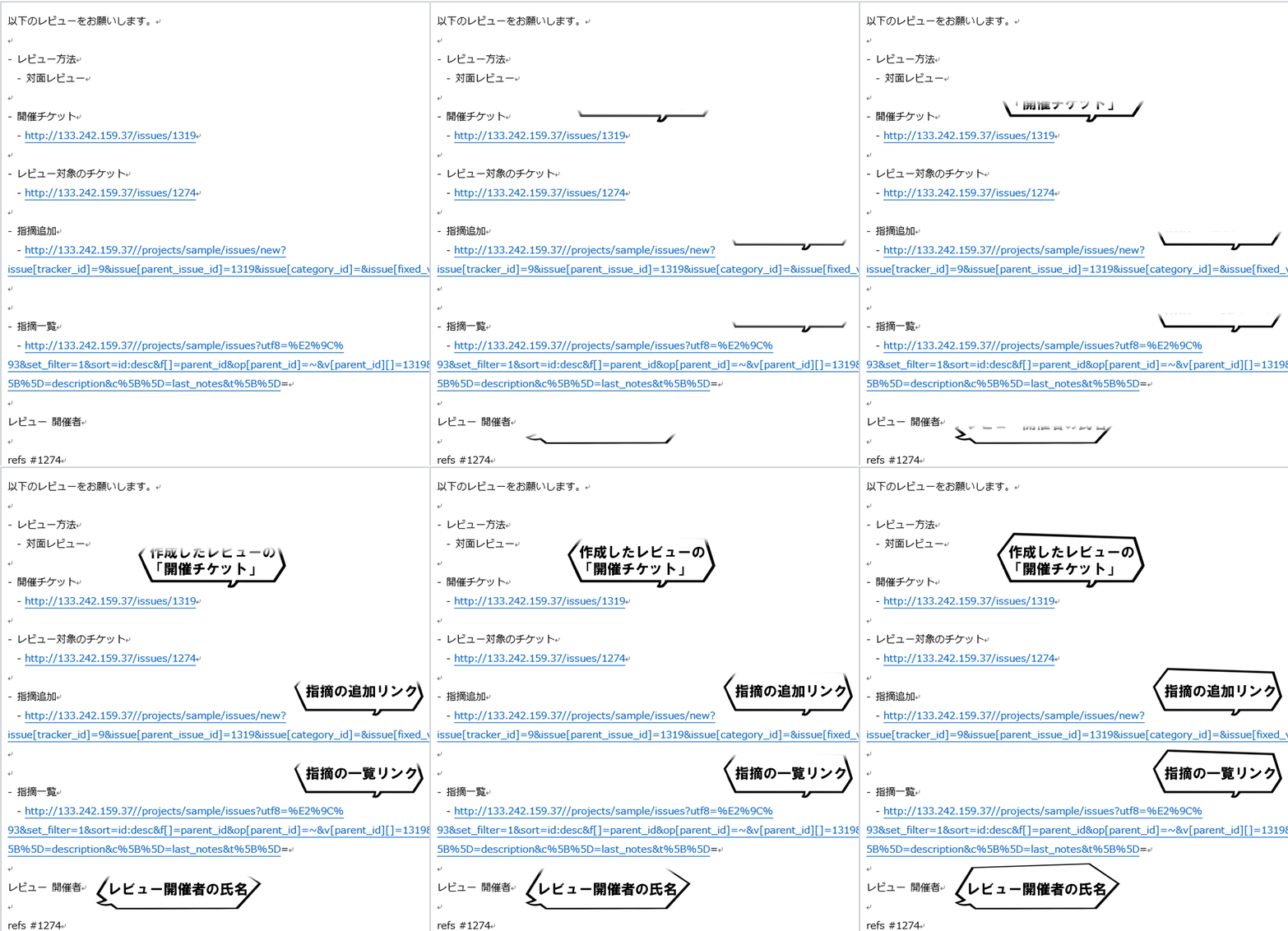
This appointment reflects the “session date/time” and “reviewers” that were set on the review screen. By clicking “Meeting Request”, you can also send an attendance request email directly to the reviewers.
The appointment details are also automatically populated with the configured items. Edit as needed.
This feature uses Outlook’s scheduling functionality to easily find time slots when all participants are available. When “Outlook Integration” is enabled, a “Schedule with Outlook” button appears. Select reviewers and click the button to open the Outlook appointment screen with the reviewers already added as attendees.
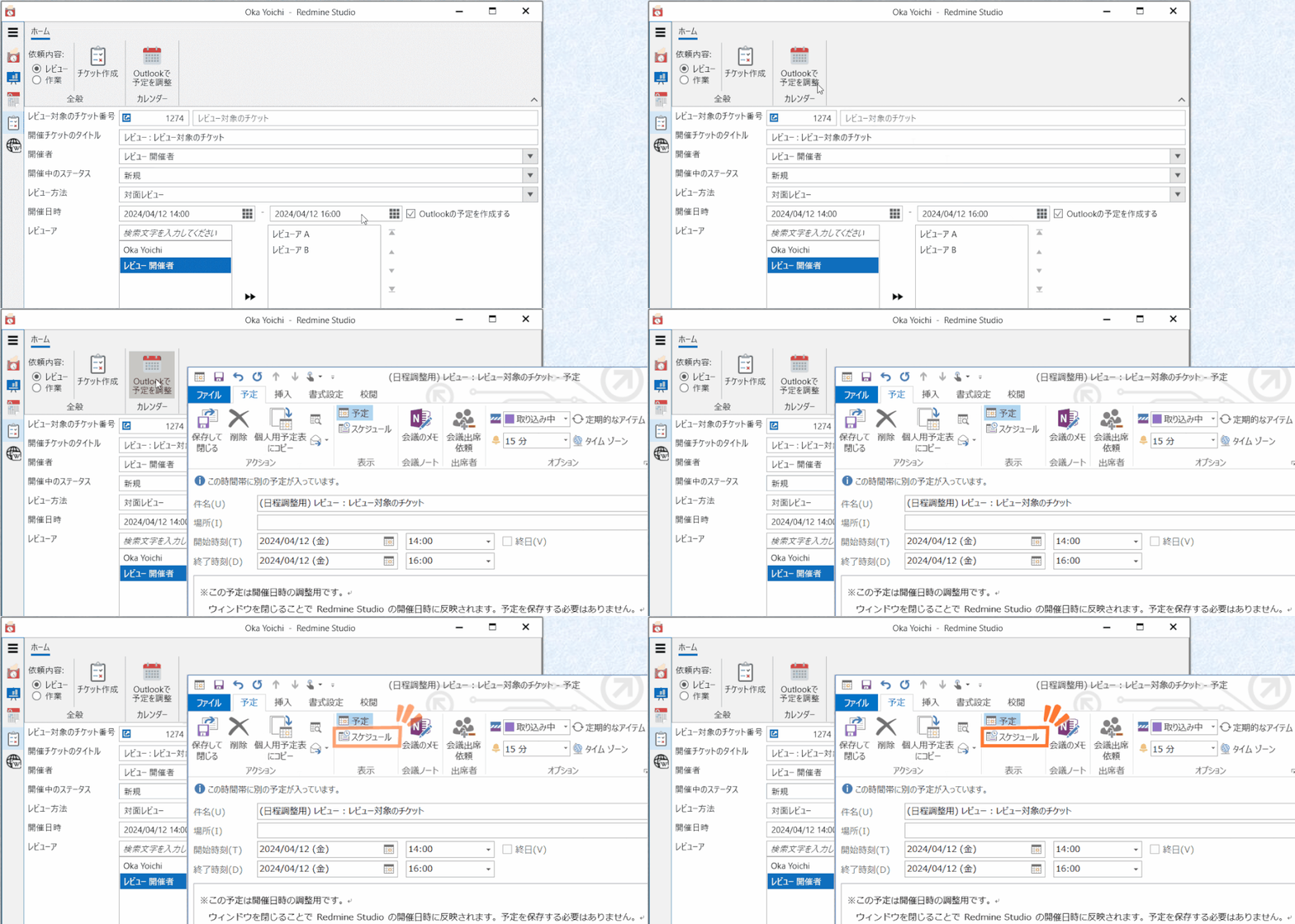
Click “Scheduling” here to see a list of all selected reviewers’ schedules. Since you can see everyone’s schedule at a glance, select an available time slot.
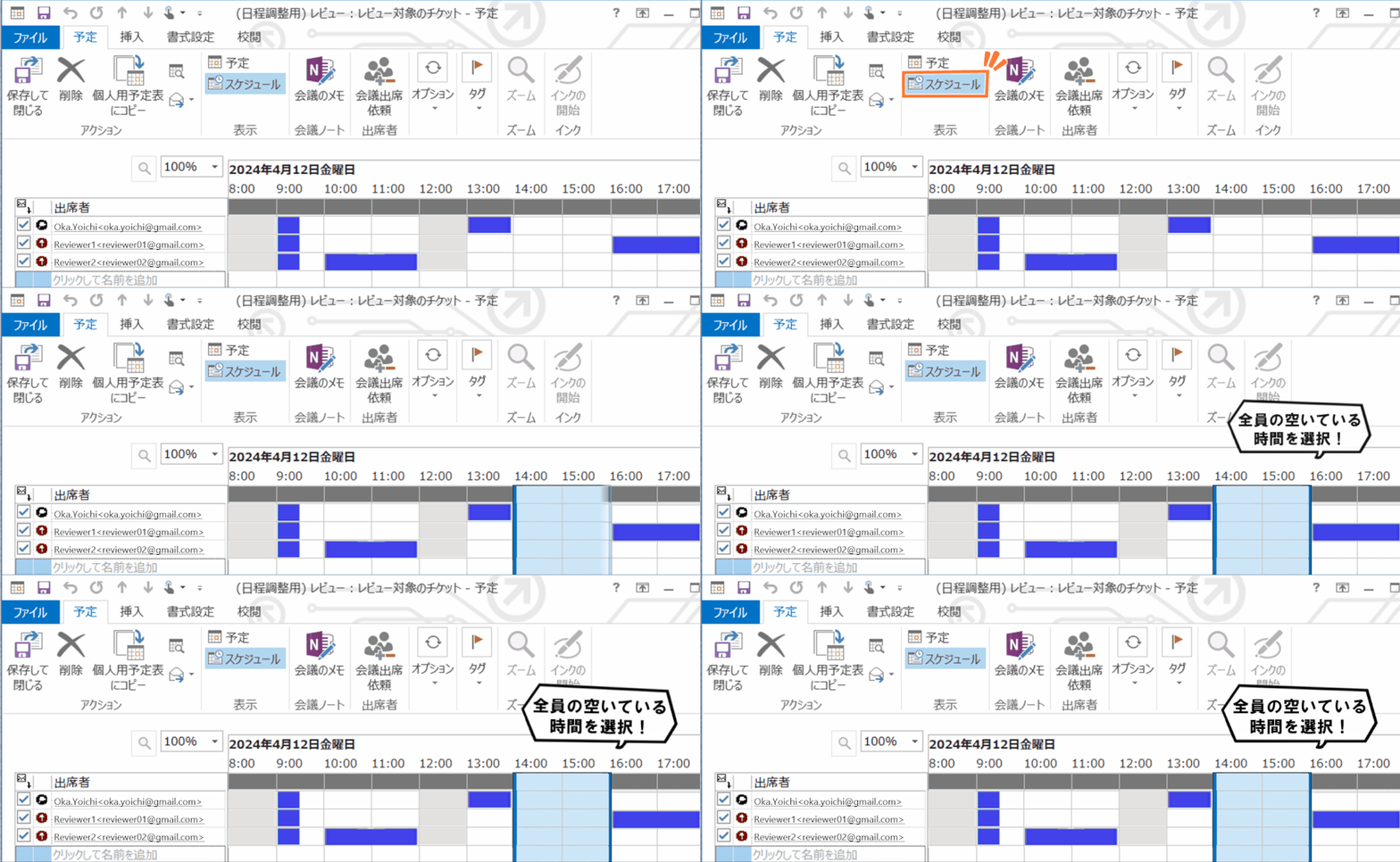
When you close the appointment screen in this state, the selected time slot will be reflected in the “Session Date/Time” on the review screen. You don’t need to save the appointment at this point. If you also want to create the appointment, use the “Create Outlook appointment” feature described above.
This concludes the explanation of review method settings and Outlook integration.
Scheduling reviews with busy people can be challenging, even just deciding on candidate dates.
We hope this helps make that process a little easier.
See you in another article.