RedmineStudio Time Entry Quick Start
redminepower
RedminePower

Coming soon …>>
This is a quick start guide for the Bulk Issue Creation feature in RedmineStudio.
This feature extends the issue table editing functionality, allowing you to quickly and intuitively add child issues to a specific parent issue. The development was inspired by the following feedback:
We want to stop using Excel as meeting minutes for reviews, but during face-to-face reviews, creating issues for each comment or feedback interrupts the flow of discussion. Is there a way to streamline issue creation?
Based on this feedback, this feature was developed to maintain the ‘Excel-like’ user experience while enabling ‘issue-driven’ reviews by making it easier to add issues. This improvement is aimed at those who are attracted to issue-driven reviews but have felt resistance to changing from their existing workflow, or have found that it doesn’t quite fit their actual work processes.
For more information about issue-driven reviews, please see:
– Quick Start: Creating Review Issues
From here, we will explain using the use case of ‘Recording face-to-face review minutes as issues instead of Excel’.
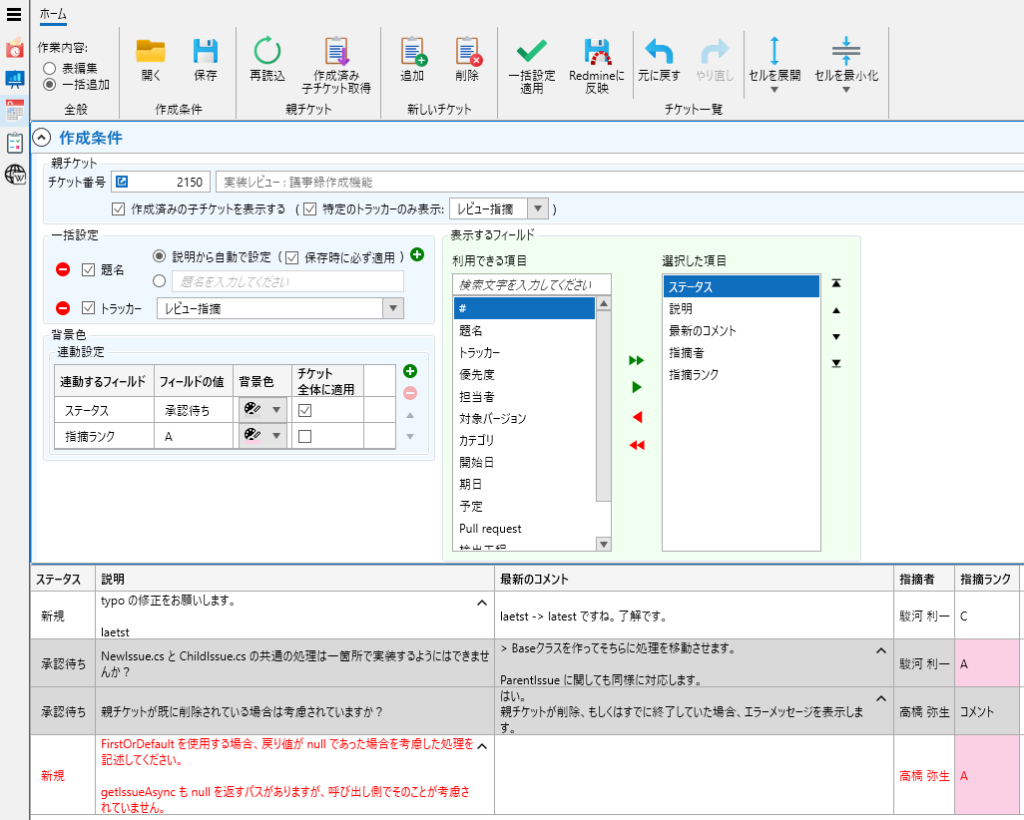
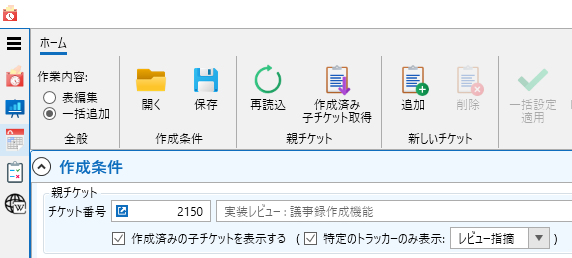
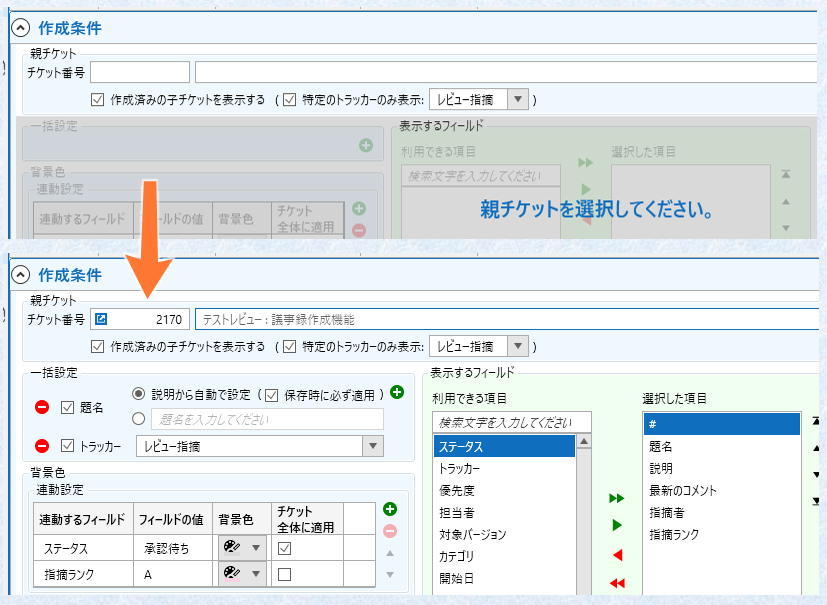
From the input screen, select ‘Issue Table Edit’ on the left, then select ‘Bulk Add’ as the operation to open the Bulk Issue Add screen. Next, enter the issue number to select the ‘Parent Issue’. New issues will be created as child issues of this parent issue.
If issues have already been created and you want to display them as well, enable ‘Show existing child issues’ and execute ‘Get Existing Child Issues’. You can filter the child issues to display by tracker.
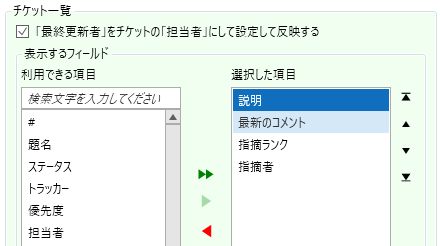
Select the fields you want to display according to your workflow. When you change the selection, the columns in the issue list will be updated.
This completes the review preparation!
From this point on, you don’t need to change the creation conditions, so you can collapse that section.
When there is feedback, click ‘Add’ to create a new issue. Each field of the new issue will inherit values from the parent issue unless batch settings (described later) are configured. After adding issues, edit them as needed according to your workflow. At this stage, changes have not yet been applied to Redmine. Execute ‘Apply to Redmine’ at an appropriate time, such as when the review ends.
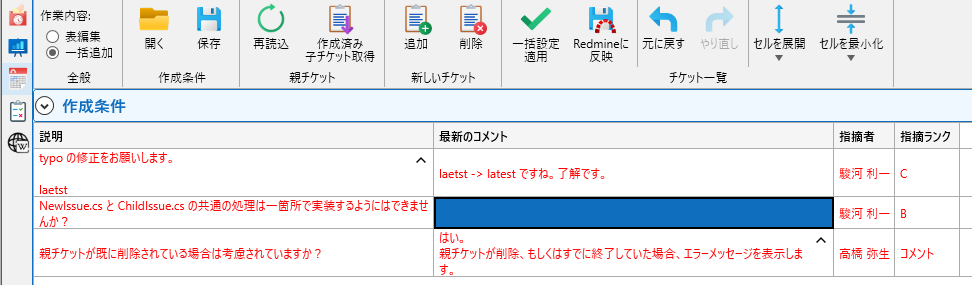
Additionally, ‘Delete’ only applies to new issues. This ‘Delete’ cancels the application of new issues to Redmine and is intended for cases such as ‘A piece of feedback was added but was later rejected during discussion and no longer needs to be reflected in Redmine.’ Therefore, issues that have already been applied to Redmine cannot be deleted here.
When you execute ‘Apply to Redmine’, the issues are created. For existing issues, changes are saved. Please note that if required fields are not set, the application will fail.
After ‘Apply to Redmine’, you can continue editing or adding new issues, so you can execute ‘Apply to Redmine’ periodically.
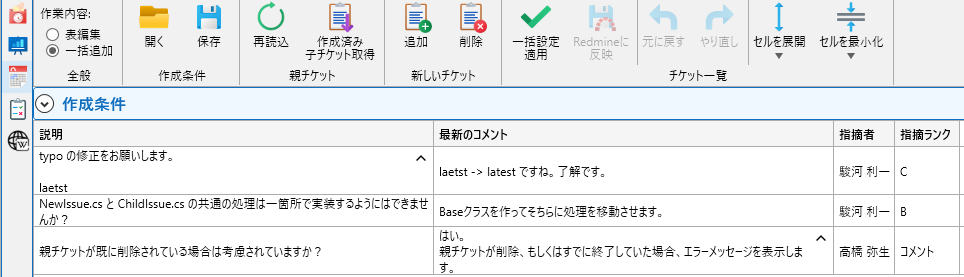
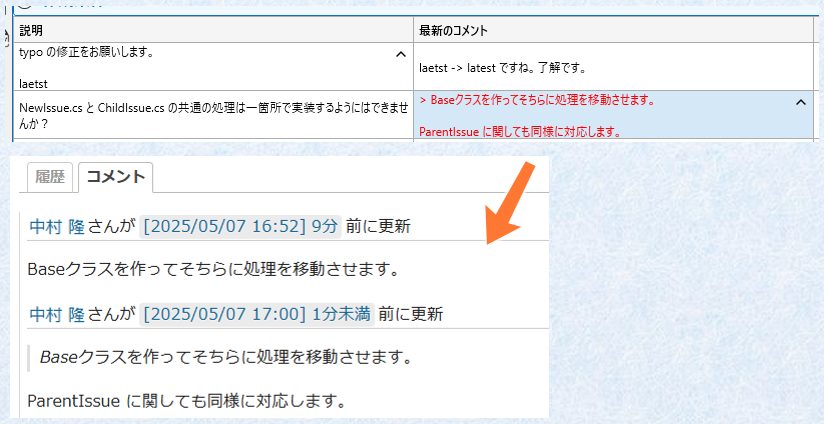
When you edit ‘Latest Comment’ and execute ‘Apply to Redmine’, it will be added as a new comment as shown below.
This feature allows you to set common fields for child issues being created at once. For example, with the following settings, the ‘Tracker’ for all created issues will be set to ‘Review Feedback’. (Batch setting for ‘Subject’ is described later.)
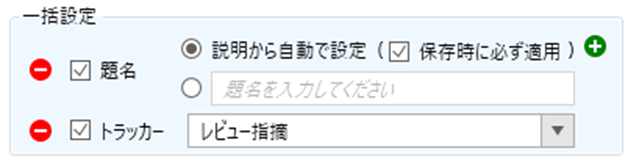
Click ‘+’ to add batch settings. Not only standard fields like ‘Subject’ and ‘Tracker’ but also custom fields are supported, so please add settings according to your workflow.
These settings are basically applied when a new issue is added or when ‘Apply Batch Settings’ is executed. Therefore, if you want to apply changed batch settings to issues being edited, be sure to execute ‘Apply Batch Settings’. Also, if a field set by batch settings is manually changed, the manual change takes priority.
When batch settings are not configured, values from the parent issue are used for fields such as ‘Tracker’, ‘Status’, ‘Assignee’, and ‘Target Version’.
The batch setting for ‘Subject’ has an ‘Auto-set from Description’ option. This feature sets the ‘Subject’ (which is required for issue creation) to a formatted string from the first line of the ‘Description’. Furthermore, when ‘Always apply on save’ is enabled, the ‘Subject’ is reset using the current ‘Description’ when ‘Apply to Redmine’ is executed.
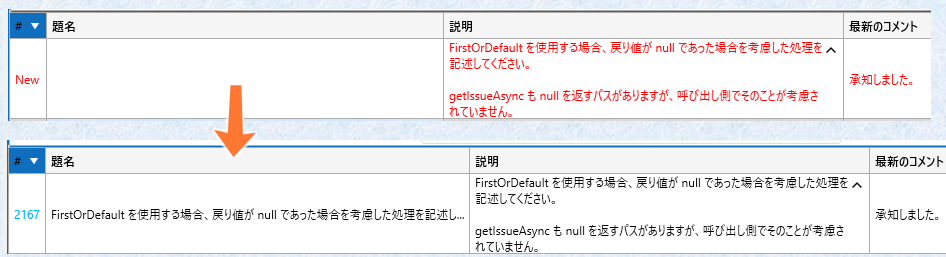
This feature was developed in response to feedback that ‘In existing Excel reviews, there is no field corresponding to the issue subject, and it is bothersome to always have to set something for issue creation.’ This eliminates the need to think of a subject for each issue and avoids failures due to missing required fields.
You can change the background color based on the value of each field.
Set the condition by specifying ‘Linked Field’ and ‘Field Value’, then set the ‘Background Color’ to apply. When ‘Apply to entire issue’ is enabled, the background color is applied to the entire issue (i.e., the entire row). When disabled, the background color is applied only to the cell of the ‘Linked Field’.
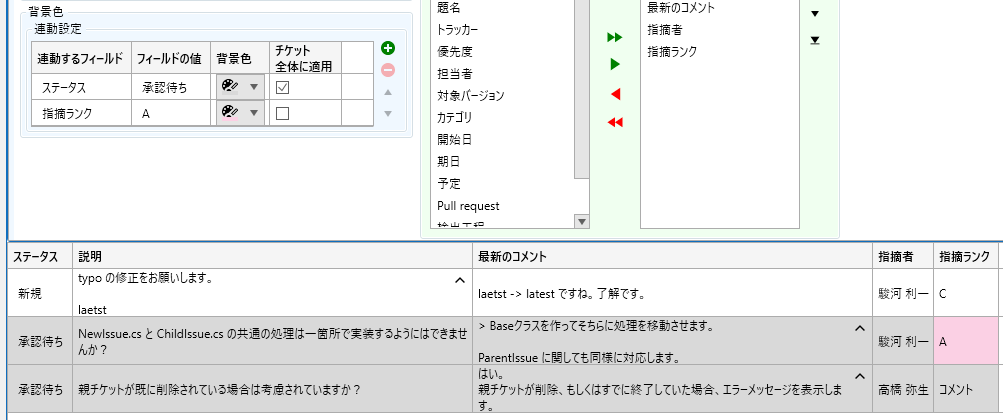
Multiple background color settings can be defined. Conditions are evaluated in order, and the first matching condition is applied. Also, when a setting that applies to the entire row and a setting that applies to a single cell conflict, the single cell setting takes priority.
Display column settings, batch settings for common fields, and background color settings can be exported to reuse or share among team members.
To import settings, execute ‘Open’ in the creation conditions and select the settings file to import. When you select the ‘Parent Issue’, the imported settings will be applied.
To export settings, execute ‘Save’ in the creation conditions and select the export destination. Information about the ‘Parent Issue’ is not exported, so you will need to set it again when importing.
This was an introduction to the Bulk Issue Creation feature using RedmineStudio.
How did you find this explanation using face-to-face review minutes as a use case?
Please continue to send us your feedback!
Breaking free from Excel-based reviews.
May this help you achieve that goal!
Coming soon …>>